Web App Overview
Bespokify's web application gives clients an easy way to create and manage their generated garments. The interfaces have been designed to make the process of customising and generating products as intuitive and pleasant as possible. It can be found at app.bespokify.com.
Getting Started
In order to generate a first draft, there are two main resources that need to exist in the user's account: at least one Pattern Library, and at least one Measurement Profile.
TIP
It is critical that you follow the measurement instructions exactly. Our platform produces patterns according to the measurements being taken in a specific way. Any incorrect values inserted into the interface will affect the size and shape of the garment. We have provided detailed resources to help navigate you through this process. Following this method will ensure that your garments fit as you require.
1. Check available Pattern Libraries
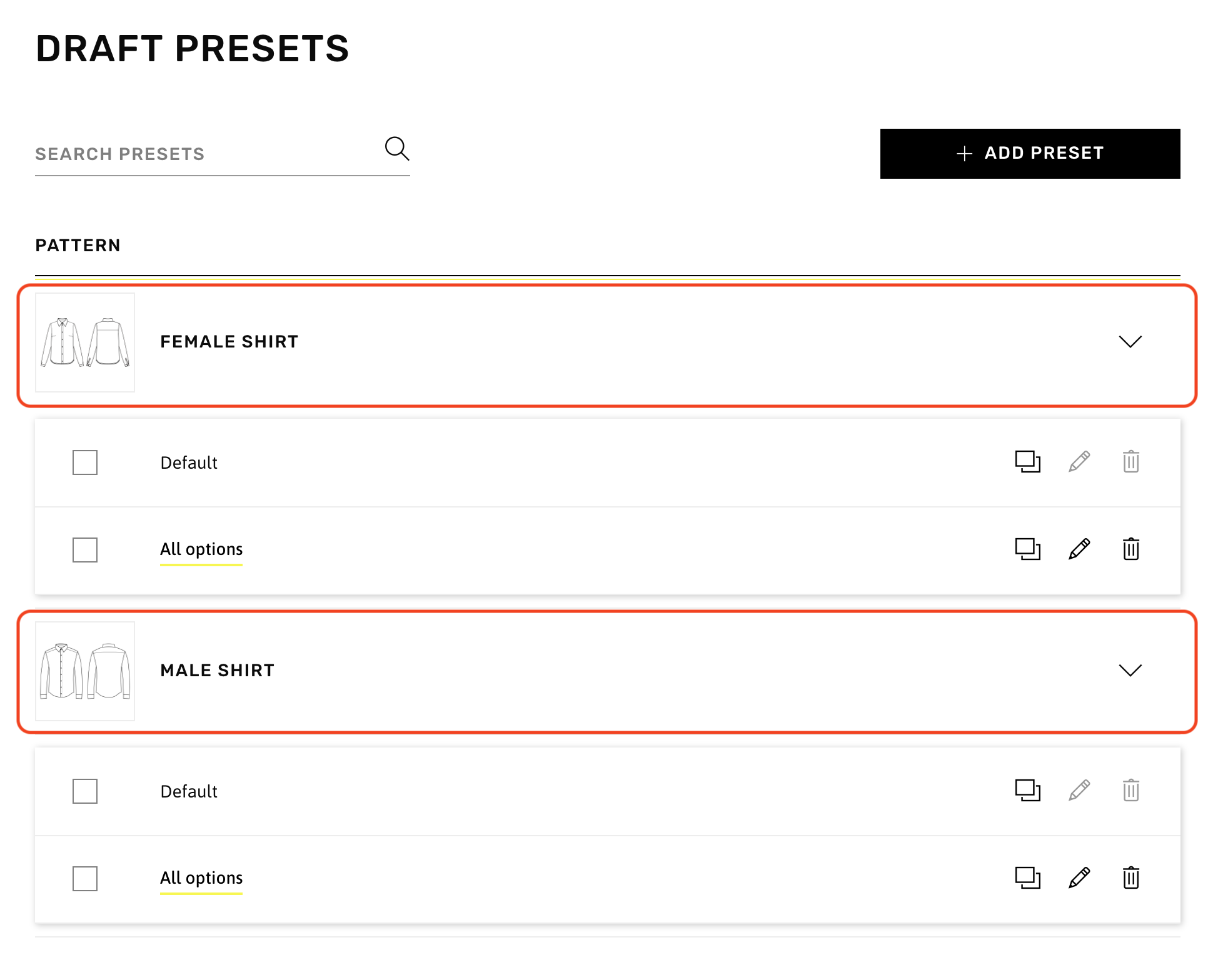
Users can see which Pattern Libraries are available to them in the Draft Presets section, as shown below. In this example, there are two libraries available: Female Shirt and Male Shirt.
TIP
The next steps can be done on the Testing tab. This helps to avoid mixing test drafts with final products.
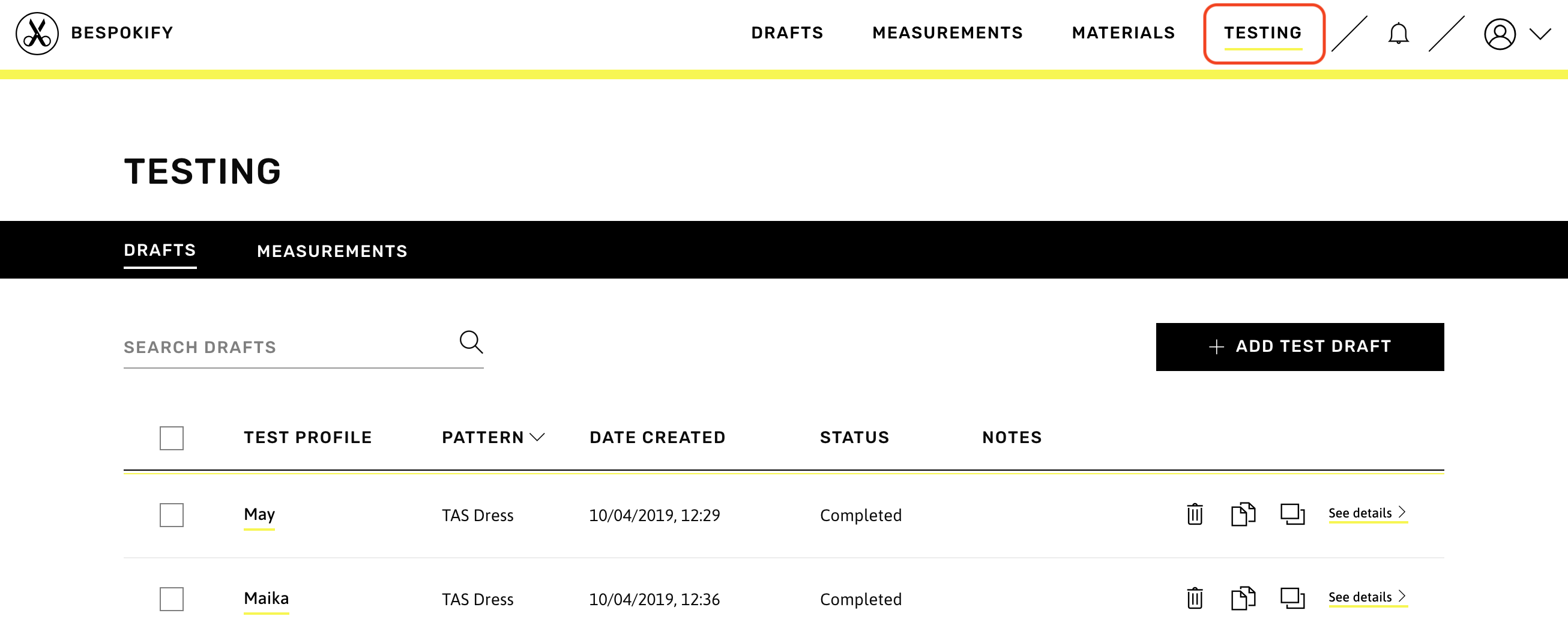
Users can follow the instructions detailed in Measurements and Drafts for creating new items in the Testing section.
2. Create Measurement Profiles
In the Measurements tab, users should make sure to have at least one Measurement Profile in the list. If there are no profiles available, we've provided instructions on how to add them.
3. Generate a draft
With the previous steps complete, users can proceed to generate new drafts in the Drafts tab. Once the draft is generated, users can review the Tech Pack for that product as well as download the export files needed to plot and cut the pattern pieces.
Additional features
While those are the basic steps to start generating products in the Web App, there are more features available to users to enhance the process of generating drafts in the system.
The Materials section allows users to manage different material options that can be selected while generating drafts. Properly labeling materials this way helps provide better instructions for factories in charge of assembling the garments.
The system also offers the option to create custom draft presets for pattern libraries. This can help save a lot of time when generating drafts with a specific style for multiple measurement profiles.
Users can also add their own export profiles to ensure that the exported draft files are compatible with their printers, plotters, and/or cutting machines.